Connect with VLESS.
Install the recommended client for your phone or Windows PC, paste your
vless://
key, and go online in seconds.
Copy your vless:// key
Copy the complete link starting with vless:// to your device clipboard.
Install the client app
Get NetMod or NPV Tunnel from the official store for your platform below.
Import & tap Connect
Import directly from your clipboard, allow VPN access, and tap Play.
Copy every character
Missing even one character at the start or end of vless:// prevents connection. Use the QR & Link Cleaner if your chat app wraps lines.
Free Data Limit Upgrade
BonusUnlock unlimited data & peak speed boost for your VLESS profile.
Want to Buy VLESS Links?
Pre-filled MessageMessage @MohamedSahl7 on Telegram with an automatic order message ready to send.
"Hi! I'd like to buy a VLESS link for Android."
Choose your device.
Tailored apps and visual walkthroughs for every platform.
Download the App
Install NetMod Syna (recommended) or NPV Tunnel from Google Play.
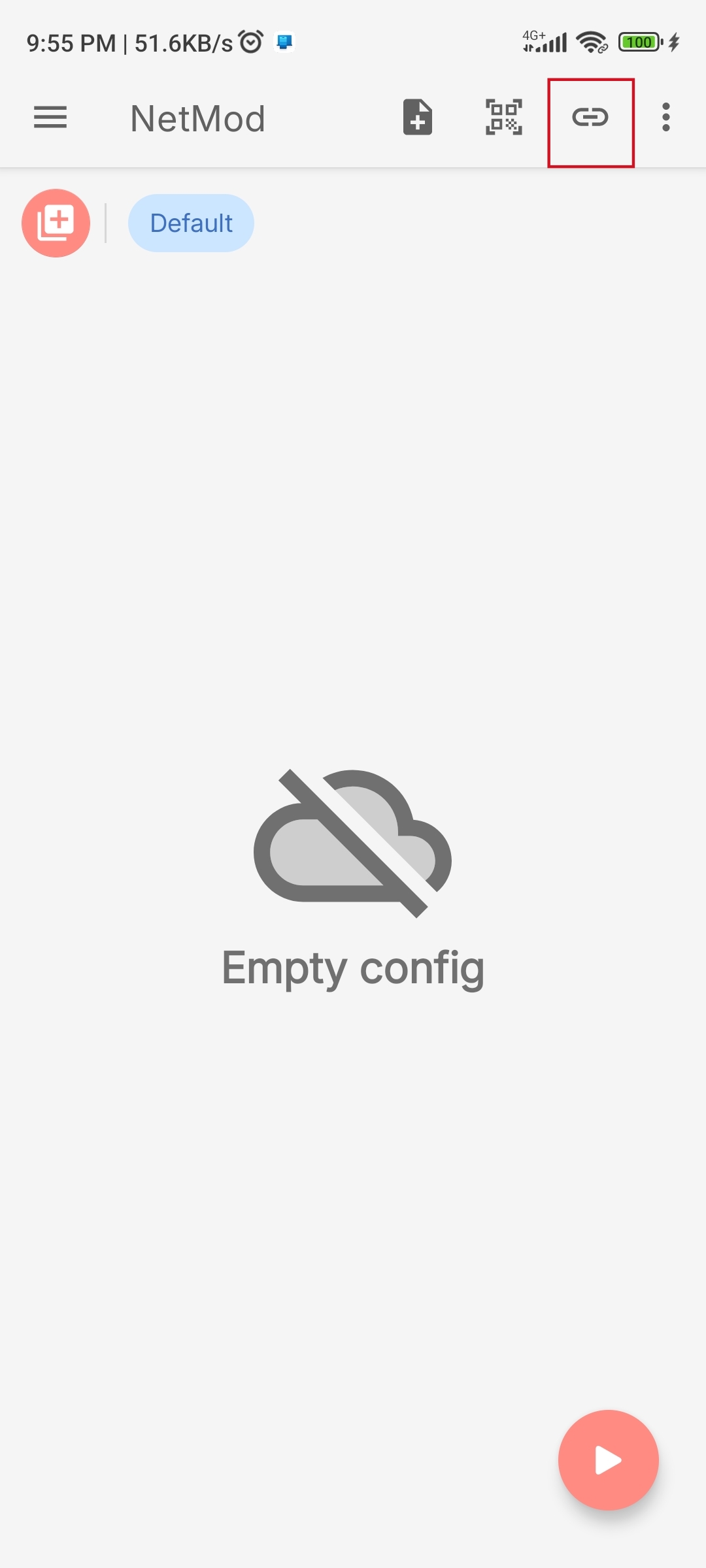
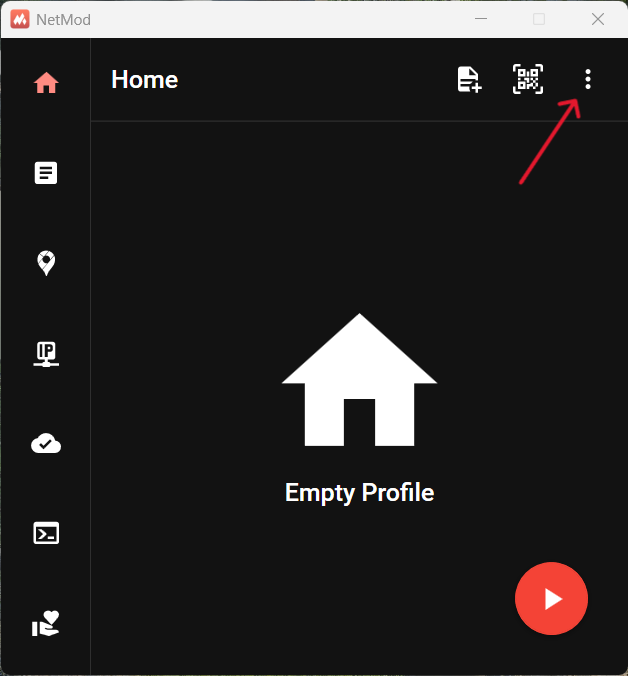
Tap the Link Icon
Copy your full vless:// link, open NetMod, and tap the Link (🔗) icon at the top right.
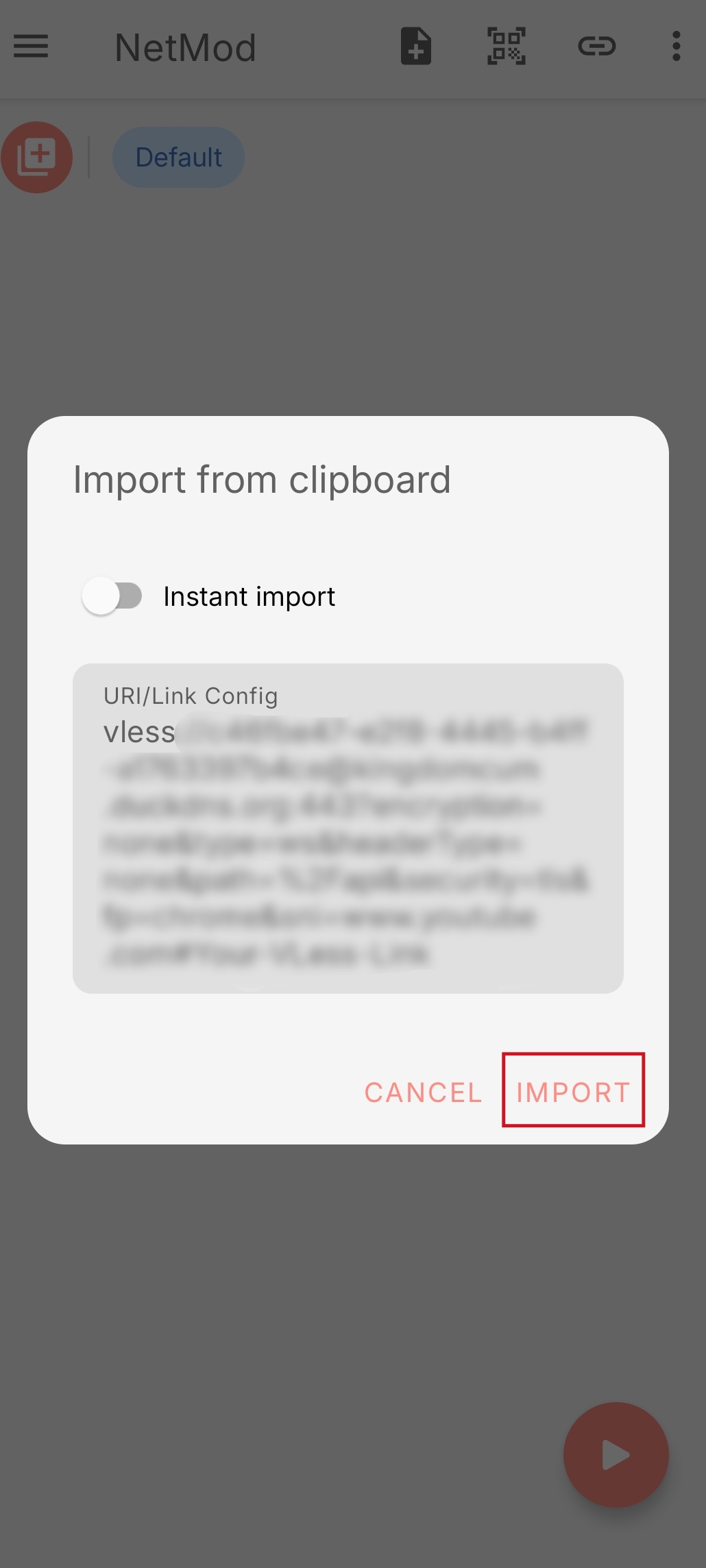
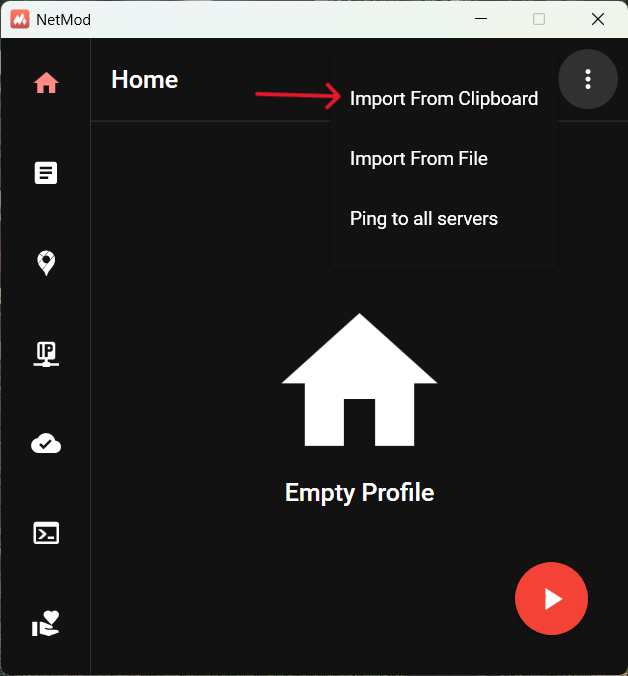
Tap IMPORT
Confirm your vless:// link in the Import from clipboard popup and tap IMPORT.
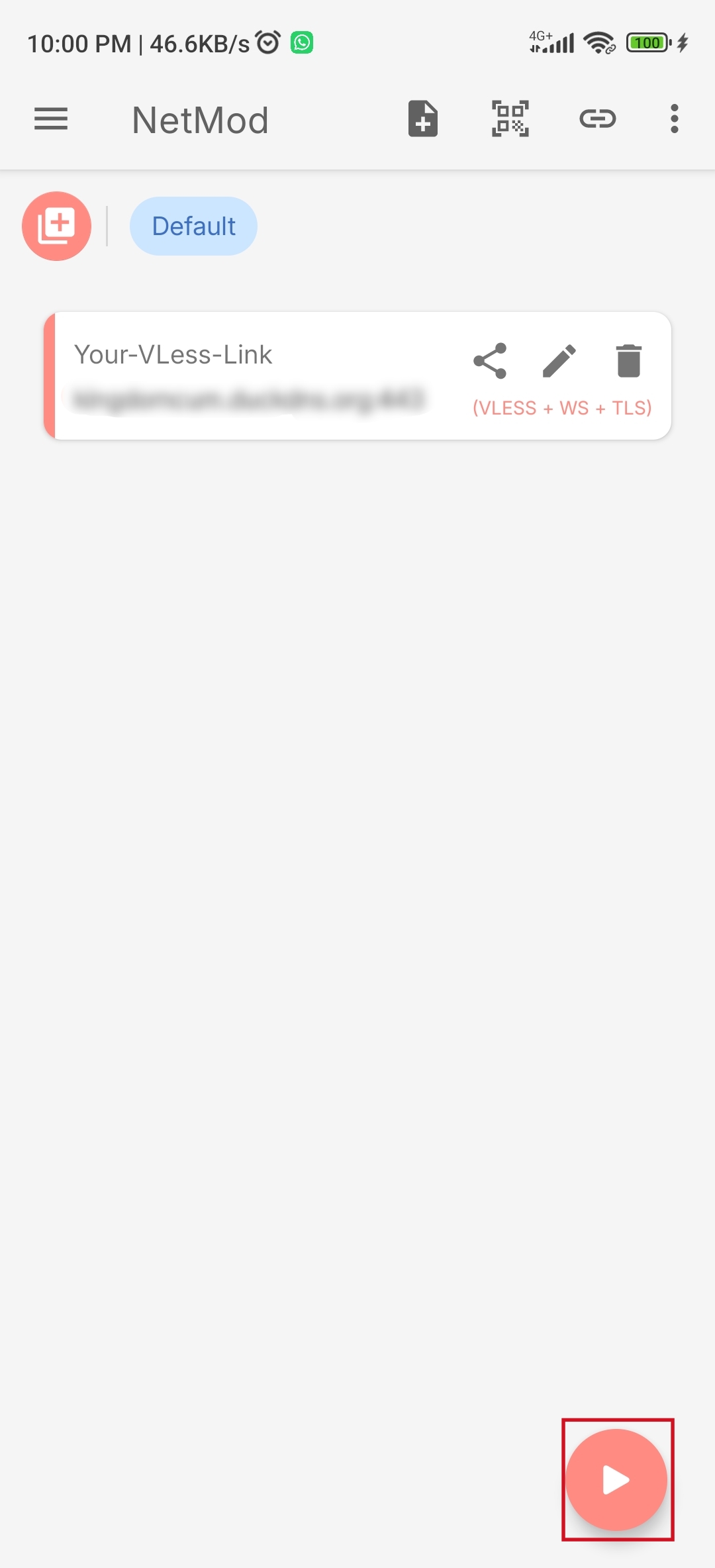
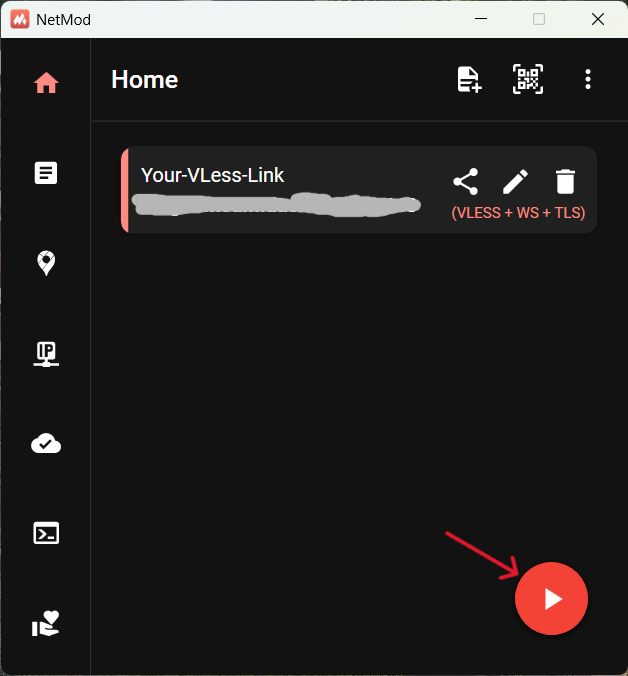
Tap Play to Connect
Tap the circular Play (▶) button in the bottom-right corner and tap OK on the VPN permission prompt.
Alternative: Using NPV Tunnel on Android
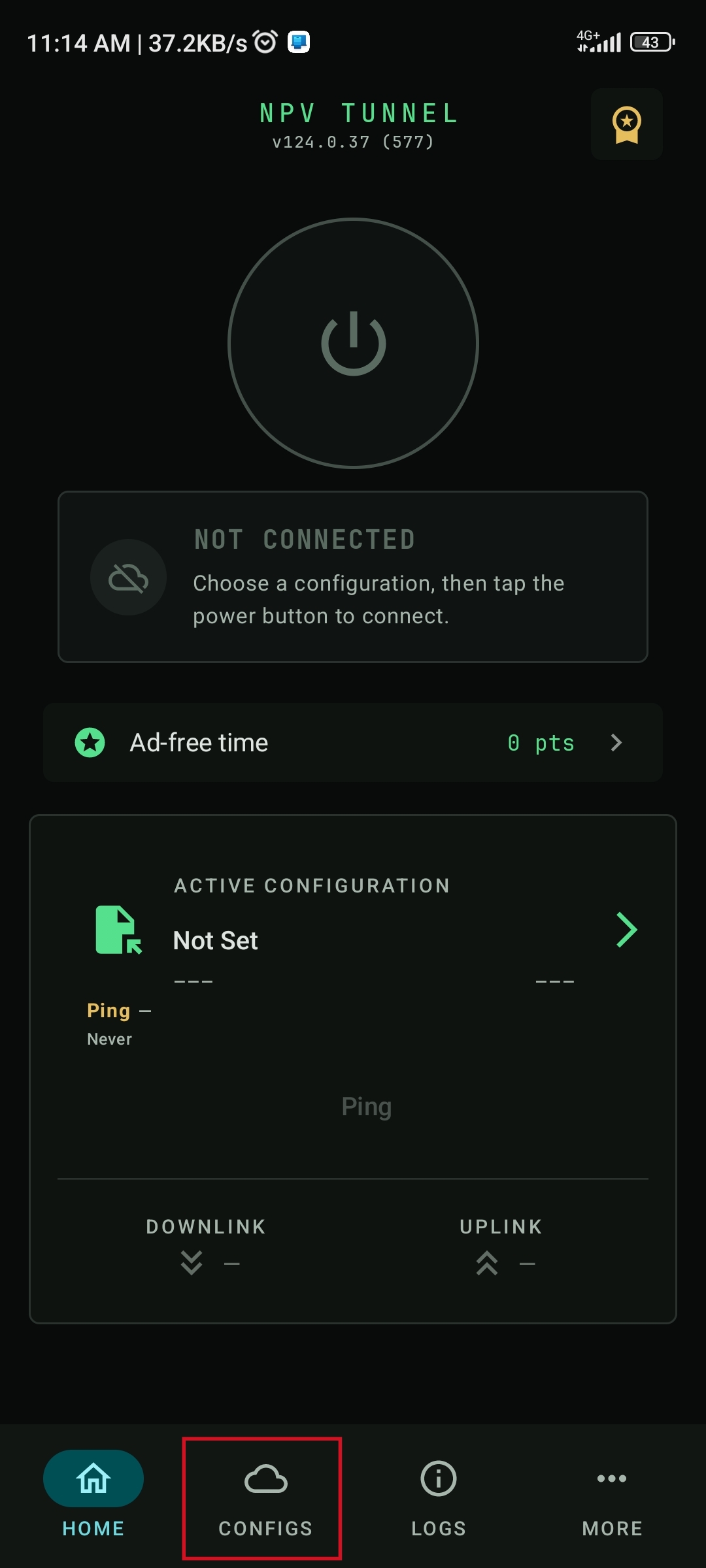
If you installed NPV Tunnel instead of NetMod Syna, follow the exact same flow as iPhone/iPad:
- Copy your
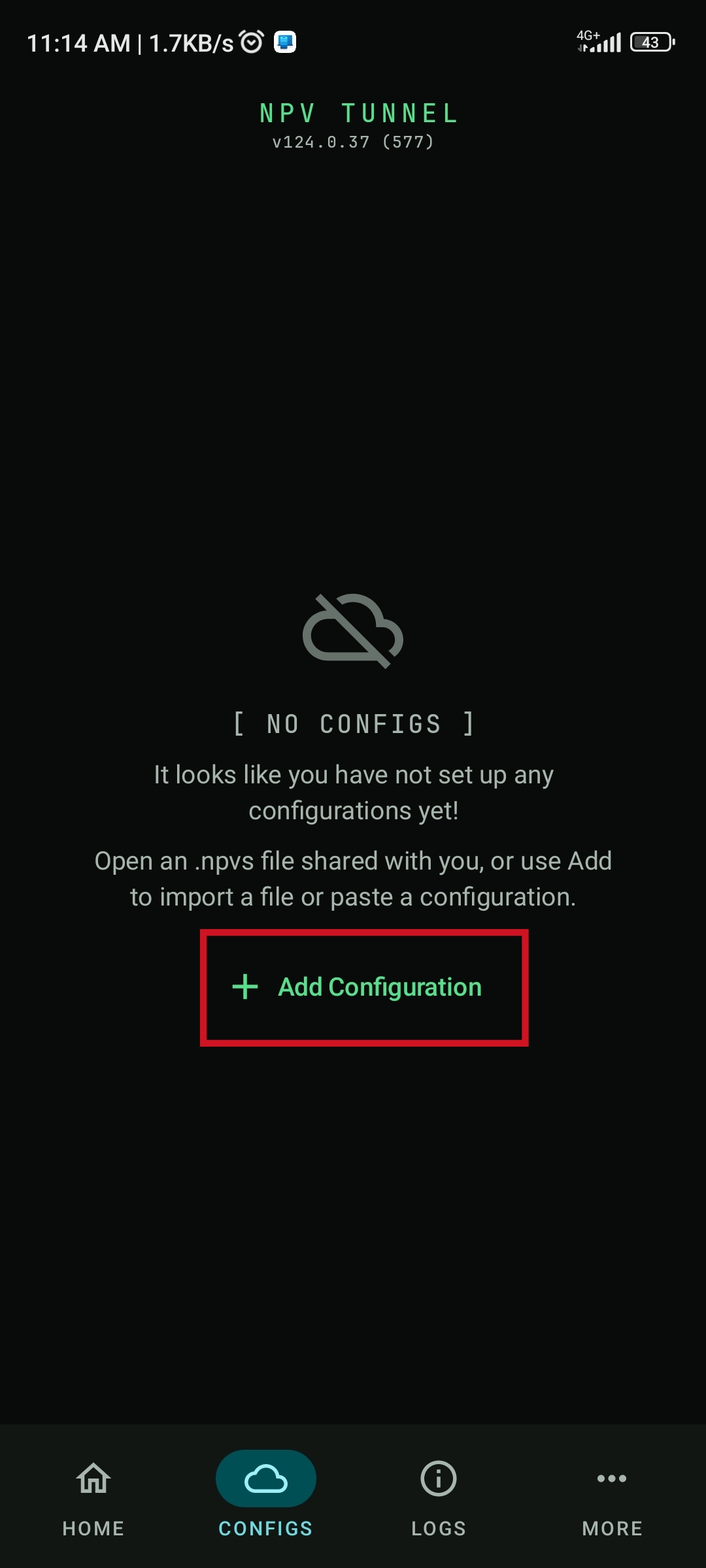
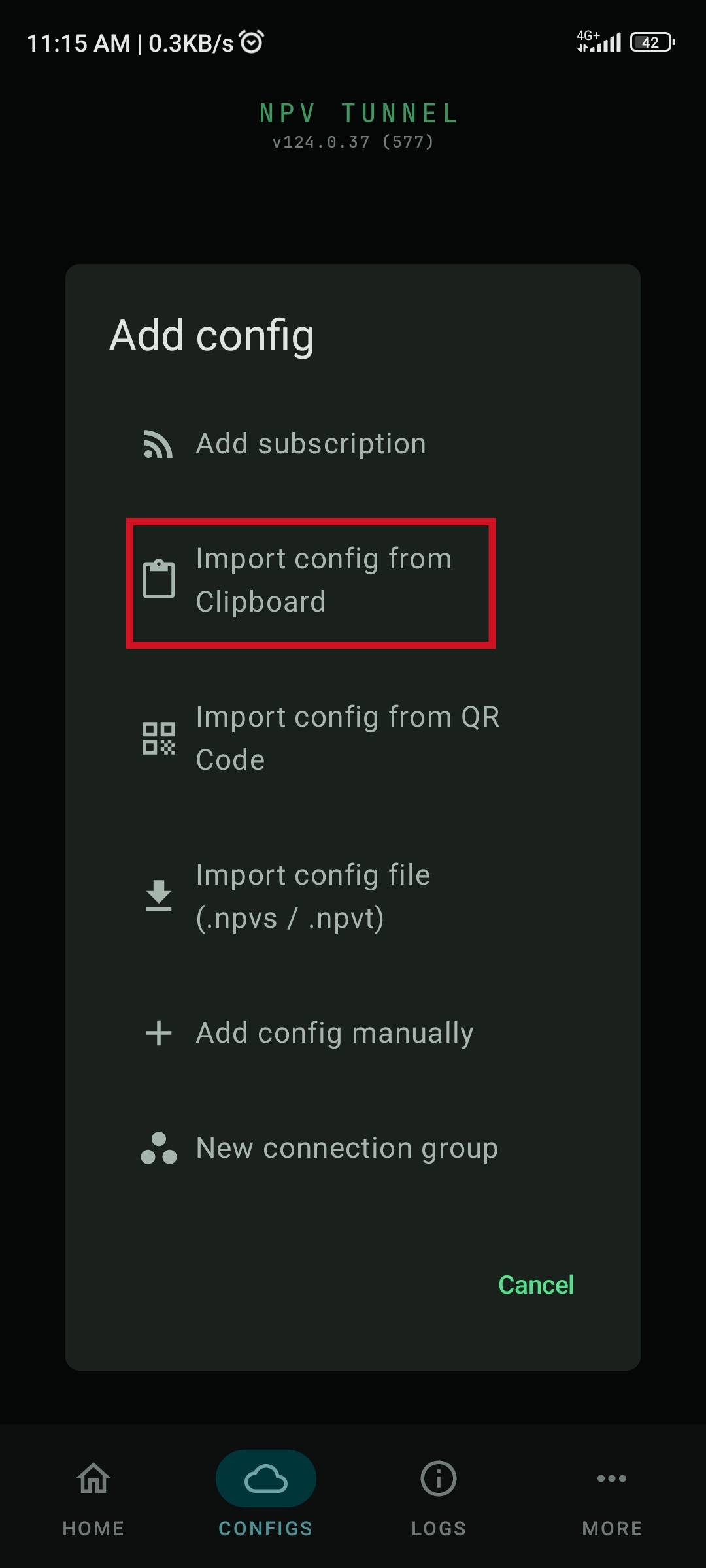
vless://link and open NPV Tunnel. - Tap CONFIGS at the bottom → tap + Add Configuration → tap Import config from Clipboard.
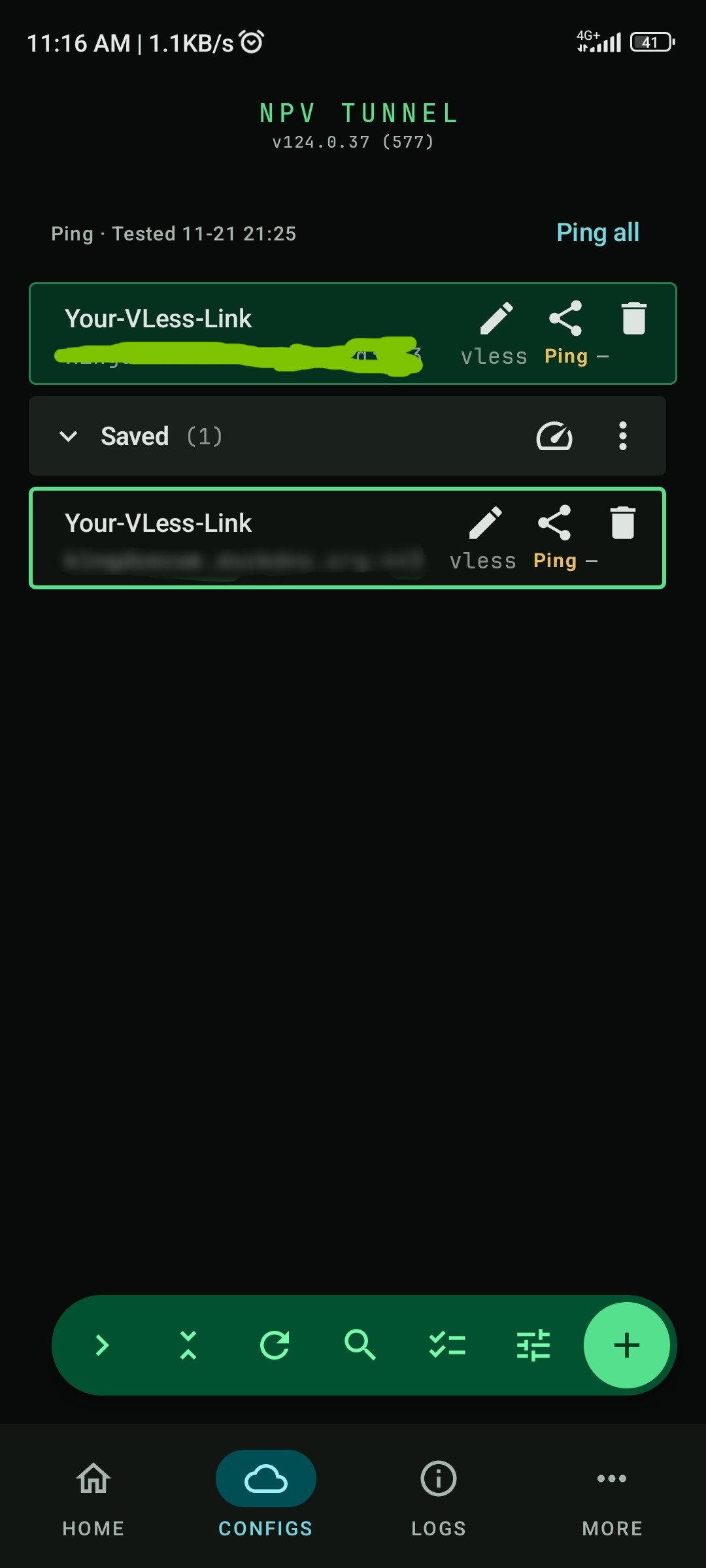
- Tap the newly imported vless profile card so it highlights in green.
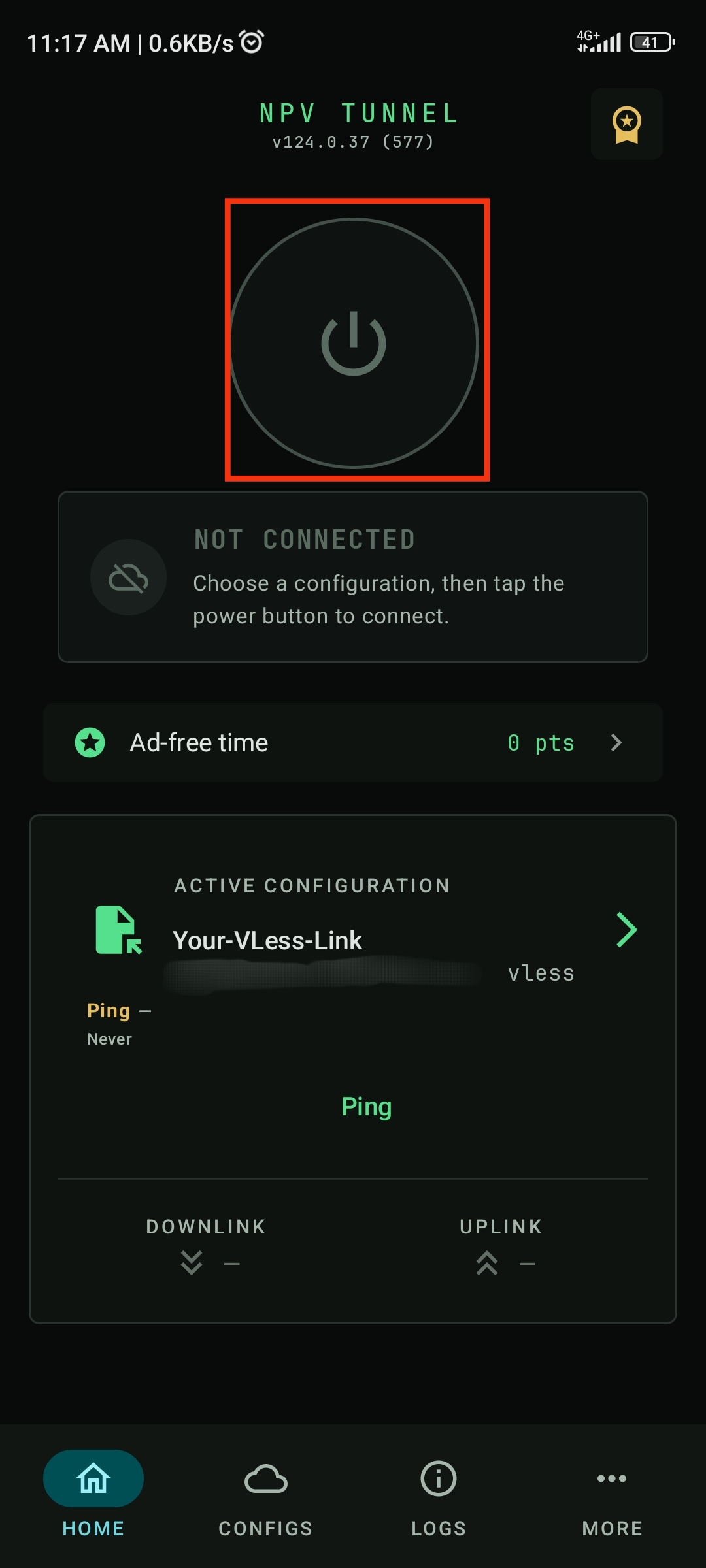
- Switch to HOME and tap the large circular Power (⏻) button to connect.
Clean & Scan.
Paste your raw vless:// message to strip stray spaces and generate an instant QR code for your phone.
Waiting for vless:// link...
Paste your raw message above to automatically strip spaces/line breaks and generate a QR code.
vless:// Link
Scan with Phone App
Tap the QR Scan icon inside NetMod Syna or NPV Tunnel.
Switching to a new key? Easy.
No need to reinstall your app—replace an expired vless:// key in three quick steps.
Delete the old config
Disconnect your app and delete the old profile in NetMod, NPV Tunnel, or v2rayN so you don't pick it by mistake.
Copy the new vless:// link
Copy the complete new link sent to you (or clean it with the QR Helper above).
Questions & Answers.
Quick solutions if you run into an issue importing or connecting.
"Invalid URL" or nothing happens when pasting
vless:// and has no stray spaces, line breaks, or missing characters. Paste your text into the Clean & Scan tool above to automatically remove extra spaces.
Connected, but websites or apps won't load
Check that your device's Date & Time is set to Automatic. VLESS/TLS connections automatically reject traffic if your phone or PC clock is off by more than 1–2 minutes.
Connection fails or TLS certificate error (Enable Allow Insecure)
Some VLESS links require turning on Allow Insecure (TLS) in your profile settings:
- NetMod (Android & Windows): Tap the Edit (pencil) icon on your imported profile → scroll to TLS settings → enable Allow Insecure → save and reconnect.
- NPV Tunnel (iPhone / iPad & Android): Go to CONFIGS → tap the Edit (pencil) icon on your VLESS card → scroll to TLS → toggle ON Allow Insecure → save and reconnect.
- v2rayN (Windows): Double-click your server row → set AllowInsecure to
true→ click Confirm and reconnect.
Which app should I install?
| Platform | Recommended | Alternative |
|---|---|---|
| Android | NetMod Syna | NPV Tunnel |
| iPhone / iPad | NPV Tunnel (Required) | — |
| Windows | NetMod for Windows | v2rayN |